Capturing live UI compositions with Claude Code
When your design process moves from Figma to the codebase, you lose something: easily sharing visual compositions. In design tools, you'd frame an artboard and export. In code, you're stuck with manual screenshots or asking people to run the app themselves. Documentation screenshots have a shelf life of about one sprint anyway, and the manual approach (capturing, cropping, uploading) is tedious enough that it rarely happens until someone complains.
I made this Claude Code skill to handle it. It connects to your running application through Anthropic's official Chrome extension, navigates to a page, isolates the component you want, and captures it with consistent styling. Capture a component variation to discuss with stakeholders, show a before/after state, document an edge case.
The AI can also do some useful tidying. Trim a data table to a few representative rows, isolate a dialog from its backdrop, replace personal information with dummy values. The captures end up as documentation assets rather than whatever happened to be on screen.
Data sanitisation
Real applications have real data. Screenshots that leak user details are a compliance headache. The skill replaces names, emails, and phone numbers with dummy values before capture.
Menus need context
A screenshot of a dropdown in isolation is useless. Including the trigger element means viewers actually understand what they're looking at.
Tidier compositions
The AI can trim data tables to a few rows, isolate dialogs from their backdrop, and generally produce something cleaner than a straight screen grab.
How it works
The skill clones your target element into a clean wrapper with consistent padding and background. This avoids capturing surrounding page context and ensures consistent output regardless of where the component sits in your layout.
- Navigate to the page containing your target
- Trigger UI state if needed (open a dialog, expand a menu)
- Inject JavaScript to hide everything and clone your target into an isolated wrapper
- Screenshot the isolated element
- Update your MDX with retina-aware dimensions (pixel size ÷ 2)
The skill
Copy to .claude/skills/doc-screenshots/skill.md:
---
name: doc-screenshots
description: Capture documentation screenshots from the live running application using the official Chrome Claude extension. Use when asked to capture, take, or create screenshots for documentation.
---

# Documentation Screenshot Capture

Capture screenshots directly from the live running application using the official Chrome Claude extension.

## Workflow

1. **Navigate** to the page containing the element
2. **Trigger UI state** if needed - click buttons to open dialogs, expand menus
3. **Inject JavaScript** to:
   - **HIDE ALL OTHER ELEMENTS** on the page (set `document.body` children to `display: none`)
   - Clone the target element into a wrapper with consistent styling
   - Append wrapper to body (it will be the only visible element)
4. **Take screenshot** of the wrapper element
5. **Get dimensions** (`sips -g pixelWidth -g pixelHeight`)
6. **Update MDX** with Image component using retina dimensions (pixel size / 2)

## Screenshot Styling

The wrapper applies consistent styling:

- **White background** - Clean, neutral backdrop
- **20px padding** - Breathing room around the element
- **No border radius** - Sharp corners on the container

### When to Apply shadow-md

Only apply `shadow-md` to **discrete single elements**:
- Dialogs
- Cards
- Tables
- Dropdown menus

**Do NOT add shadow** to compositions of multiple elements or full page sections.

## Menus and Dropdowns

When capturing menus or dropdowns, **include the trigger element** (button, avatar, etc.) so the context is clear.

## Data Tables

When capturing data tables:
- **Keep the original table structure** - Do not create your own sub-tables
- **Remove rows** to show only 2-3 example rows

## Personal Information Replacement

Before capturing, replace any personal information in the cloned element:

| Original | Replacement |
|----------|-------------|
| Any person's name | `Andrew Flett` |
| Any email address | `andrew@flett.cc` |
| Any phone number | `07700 900999` |

Search the entire cloned element for names. They appear in table cells, avatar labels, assignee fields, comment authors, and timestamps.

## Post-Capture

**Do NOT crop or modify screenshots** - save them raw from the Chrome extension.

## JavaScript Template

\`\`\`javascript
() => {
  // Remove any existing wrapper
  const existing = document.getElementById('screenshot-wrapper');
  if (existing) existing.remove();

  // Find the target element (adjust selector as needed)
  const element = document.querySelector('[role="dialog"]');
  if (!element) return { error: 'Element not found' };

  // CRITICAL: Hide ALL other elements on the page first
  Array.from(document.body.children).forEach(child => {
    child.style.display = 'none';
  });

  // Create wrapper with screenshot styling
  const wrapper = document.createElement('div');
  wrapper.id = 'screenshot-wrapper';
  wrapper.setAttribute('role', 'region');
  wrapper.setAttribute('aria-label', 'Screenshot target');
  wrapper.style.cssText = \`
    position: fixed;
    top: 50%;
    left: 50%;
    transform: translate(-50%, -50%);
    padding: 20px;
    background: white;
    z-index: 999999;
    border-radius: 0;
    display: block !important;
  \`;

  // Clone element into wrapper
  const clone = element.cloneNode(true);
  clone.style.position = 'relative';
  clone.style.margin = '0';

  // Only add shadow-md to discrete elements (dialogs, cards, tables)
  clone.className = clone.className
    .replace(/shadow-\\w+/g, '')
    .replace(/\\s+/g, ' ')
    .trim();
  clone.classList.add('shadow-md');

  let html = clone.innerHTML;
  clone.innerHTML = html;

  wrapper.appendChild(clone);
  document.body.appendChild(wrapper);

  return { success: true };
}
\`\`\`


Width and height = pixel dimensions ÷ 2 (for retina).

## Screenshot Naming

Use descriptive kebab-case: `invite-user-dialog.png`, `template-form.png`

## Requirements

- Dev server running at `localhost:3000` if not, ask the user to start it
- Log in with appropriate permissions before capturing
Example
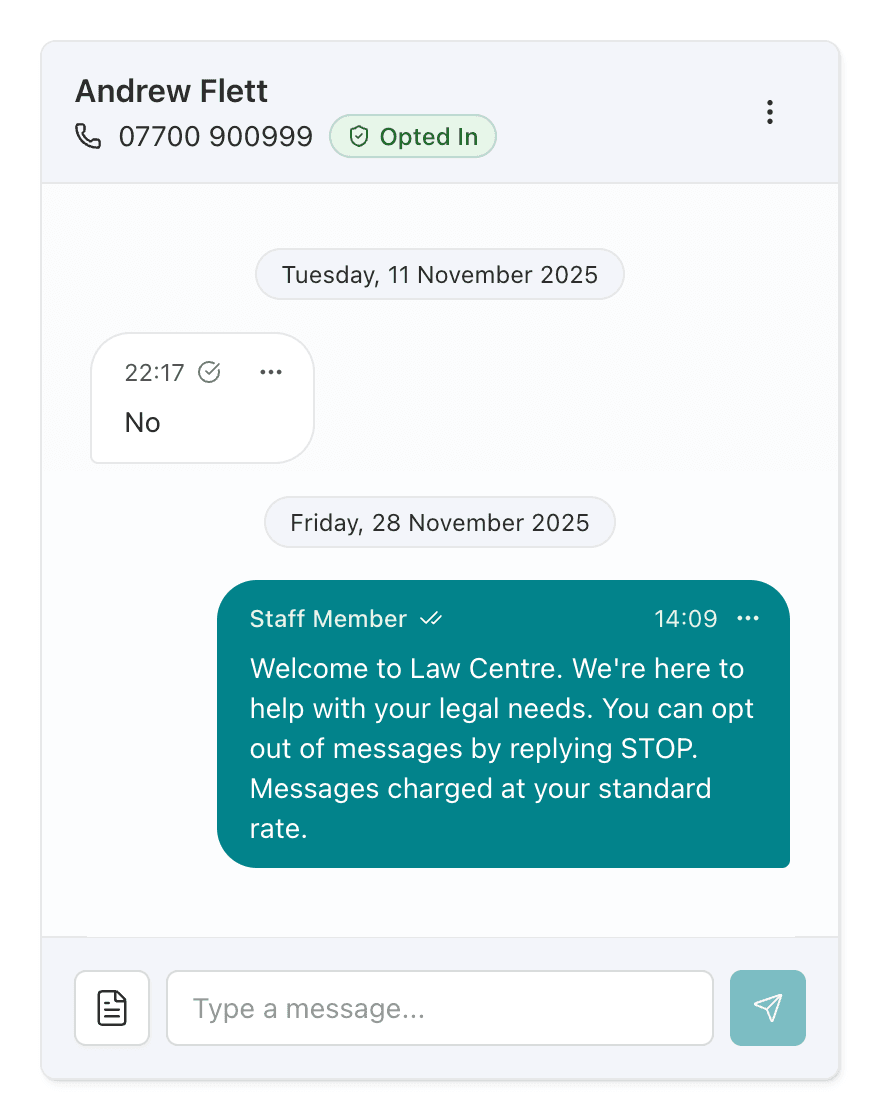
The below is from an product I'm currently working on for one of my clients. Rather than a straight screenshot of a busy conversation thread, I asked for a cleaned-up composition: just enough messages to show the interaction pattern, with real user data swapped out.
Capture a simplified conversation view from the messenger. Show the header with contact details, trim to just two or three messages, and include the message input at the bottom. Replace any real names with dummy data.