A multi-framework CLI design tool with both AI and deterministic edit modes
The gap between design and engineering has always existed because the two disciplines worked in fundamentally different mediums. Designers pushed pixels in one tool, engineers wrote code in another, and the space between them filled up with handoffs, redlines, and miscommunication.
AI changes this. Code is now a pliable enough medium to be used for rapid, exploratory design, and that means it can be used much earlier in the process, by people who have never written a line of it. Code was always the final artefact. Now it can be the first one too, and whether the initial draft comes from AI or an engineer, the designer can step in and refine it directly.
@designtools/surface is built for that world. It scans your codebase to extract your design tokens, maps your components with their current styles and props, and provides a visual editing layer that writes changes straight back to source. No import, no export, no handoff.
Two editing modes
Surface supports two complementary approaches that you can move between freely.
Deterministic mode gives you direct visual controls over tokens, component variants, and instance overrides. Every control maps to a specific, predictable edit in your source files. You know exactly what will change before you commit to it, because there is no interpretation involved.
AI mode lets you describe an edit in natural language. Surface interprets the intent against the structure of your codebase and applies the change as the same type of AST-aware write that the deterministic controls produce. The output is always production code, not a suggestion in a chat window. Use it for exploratory changes or when reaching for the exact control would take longer than just describing what you want.
Systems, not screens. Production code, not canvases.
The thought did cross my mind that I may be reinventing Dreamweaver, but what sets this apart is that it is an editor that follows modern frontend code conventions to encourage design-system thinking rather than freeform pixel pushing. There is a clear distinction between Token, Component, and Instance editing, and it encourages working with props and tokens first, only allowing arbitrary styles when you specifically need them.
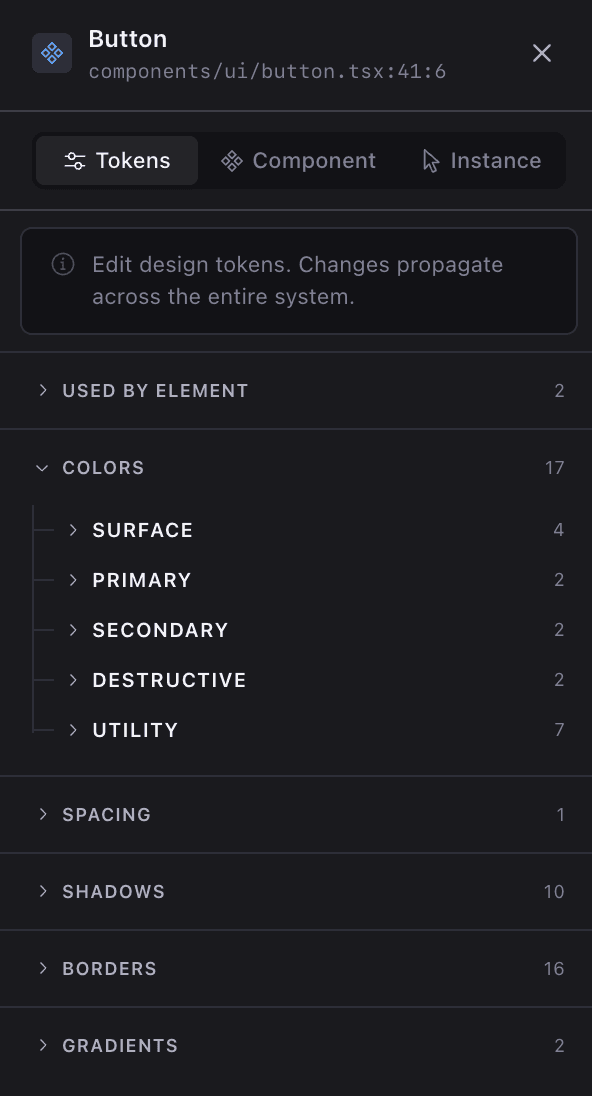
Token
Edit design tokens. Changes write to your CSS file and propagate across the entire system. Includes contrast ratio checking against foreground/background pairs.
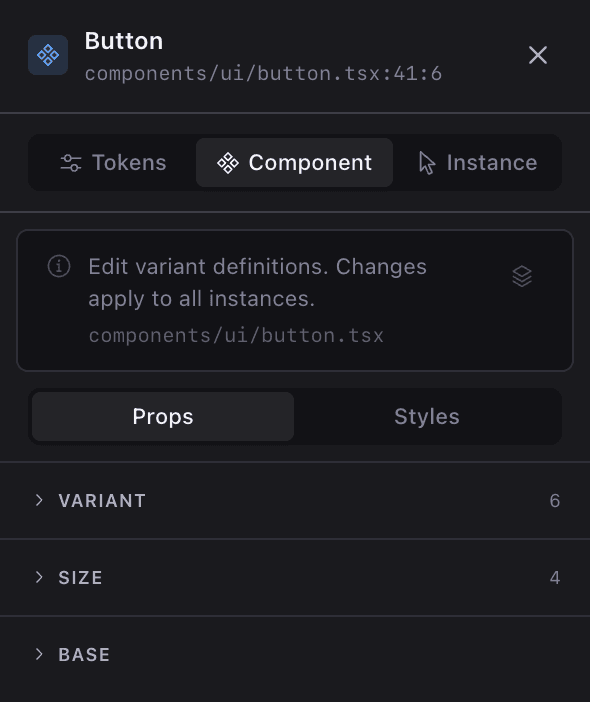
Component
Edit the component definition itself: the Tailwind classes applied to each variant option. Changes apply to every instance of that component. Nested tree view shows variant dimensions and their options.
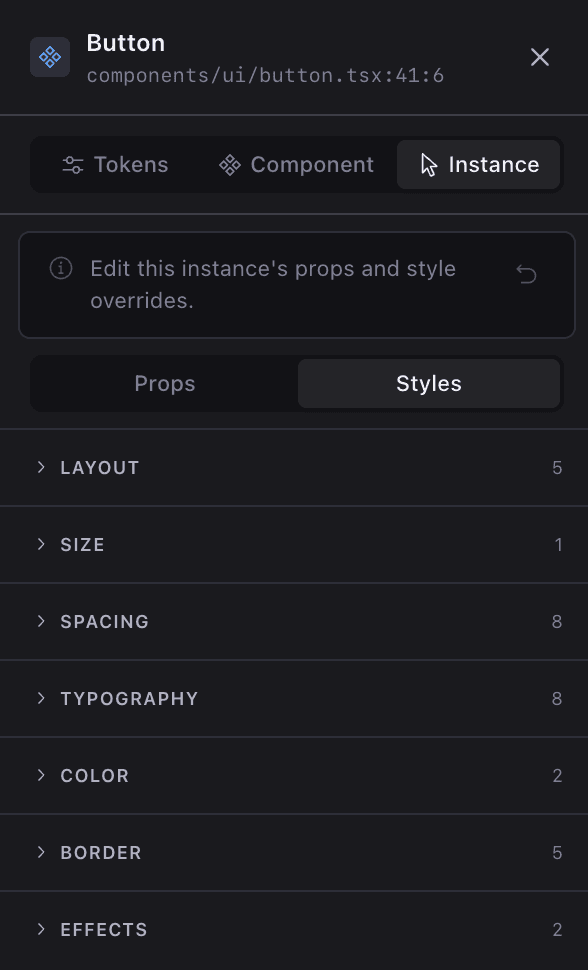
Instance
Edit a specific usage of a component where it appears in your app. Swap variant options, change size, override Tailwind classes. Property panel groups classes by category (layout, spacing, typography, colour).
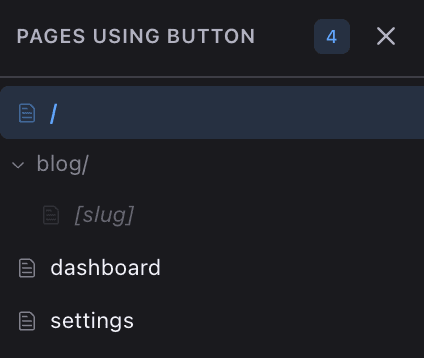
Component usage
Because you are editing a real product and not a whiteboard, it also lets you quickly view every place a shared component is used, so you can see how your changes land across different contexts.
Explore
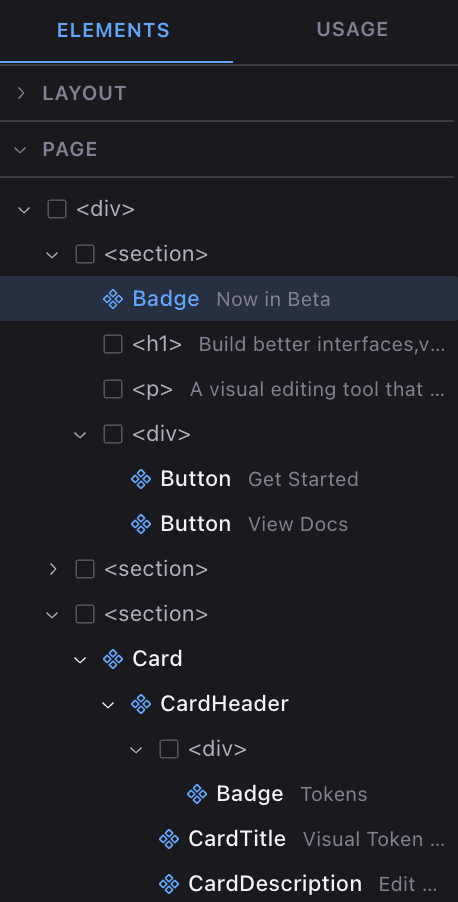
The element tree shows the full structure of your page and layout, with plain HTML elements and recognised components displayed alongside their text content. Collapsible sections let you drill into nested layouts, and clicking any node selects it for editing. It is a faster way to reach deeply nested elements than trying to click the right pixel in the viewport.
Isolate
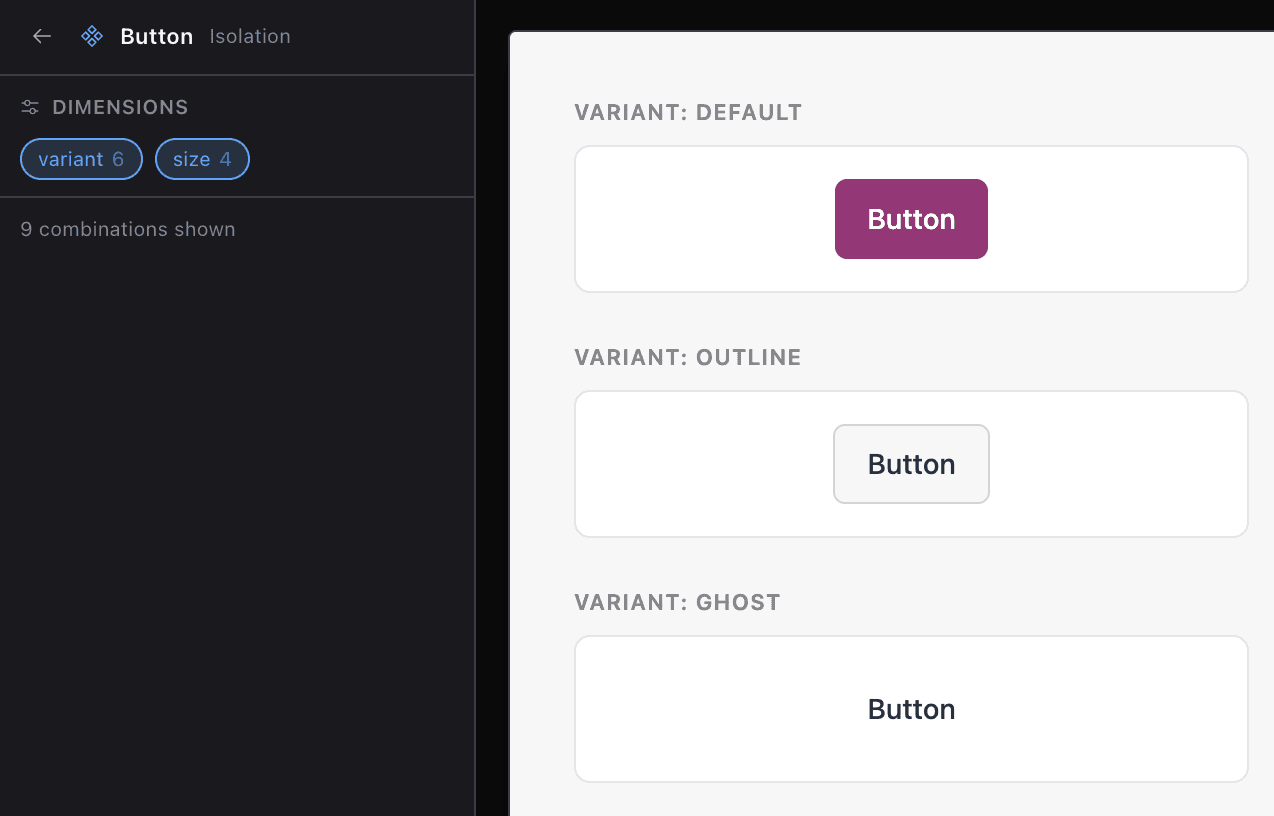
Because surface understands your components through its AST scans, it can generate live previews of every variant combination automatically. Isolate mode renders these side by side so you can see default, outline, ghost, and every other state in one place, then make edits and watch them propagate across all combinations at once. No more toggling props in Storybook or clicking through your app to check each state individually.
How it works
The editor UI runs as its own Vite-served React app alongside your dev server. Your app runs unmodified in an iframe, and the two communicate via a language-agnostic postMessage protocol that deals in tokenised and computed styles rather than framework-specific abstractions. A small Babel plugin adds source-location attributes to your JSX at compile time, giving the editor exact file:line:col mappings without modifying your source files.
When you click an element, the protocol sends its tag, classes, source coordinates, and text content to the editor. The editor cross-references this against scan data, a static analysis of your project's CSS tokens, component definitions, and route structure, then presents contextual editing controls. An Express server handles the write side, exposing API routes that update your source files via AST-aware transforms.
Understanding your codebase
Frameworks
Detects your application and styling frameworks automatically. A one-line plugin for Next.js, Vite, Remix, or Astro handles the compile-time instrumentation.
Tokens
Parses your CSS for custom properties, categorises them (colour, radius, spacing), groups by prefix, and resolves values per theme.
Components
Uses AST analysis to scan your components, extract variant dimensions, map current styles and props, and resolve the Tailwind classes applied to each variant option.
Edits are AST-aware where they need to be. Token changes write directly to CSS custom properties under the correct selector (:root or .dark). Component class changes find and replace within the source file. Instance prop changes locate the JSX usage by component name and text hint, then update the attribute.
Supported frameworks
| Framework | Plugin | Status |
|---|---|---|
| Next.js | @designtools/next-plugin | Stable |
| Vite + React | @designtools/vite-plugin | Stable |
| Remix | @designtools/vite-plugin | Stable |
| Astro | @designtools/astro-plugin | Stable |
Styling systems
Surface auto-detects your styling approach and writes changes in your project's native format.
| System | Status |
|---|---|
| Tailwind CSS v4 | Stable |
| Tailwind CSS v3 | Stable |
| CSS Variables | Stable |
| Plain CSS | Stable |
| CSS Modules | Stable |
| Sass / SCSS | Planned |
Setup instructions, demo apps, and full documentation are in the repo:
github.com/andflett/designtools
What it doesn't do
This is not a standalone design tool. It does not scaffold projects, suggest layouts, or manage documentation. It is a code-first design tool for people who already work in code and want tighter feedback loops when tuning tokens, variants, and instances against the real thing. It runs on top of your codebase, not alongside it, and there is nothing to import or export.
Part of @designtools
@designtools/surface is part of a growing suite of open-source, CLI-based design tools that all follow the same pattern: detect your framework, scan your source files, open a visual editor in the browser, and write changes back where they came from. No config files, no plugins, no build step integration required.
Edit global shadows visually and write changes straight back to your code
The companion tool for visually editing box-shadow values across your project